
PLCGIT is running in Docker, please install Docker first. We
recommend running Docker on Linux Suse Leap and Ubuntu, although Docker
can also be run on Windows.
Please note, PLCGIT and TANI doesn't support the way how to download
and/or install Docker.
After the Docker is ready, the
next step is to download PlcGit and make them running.
Download the PlcGit from the website: www.plcgit.com/en/Download.php
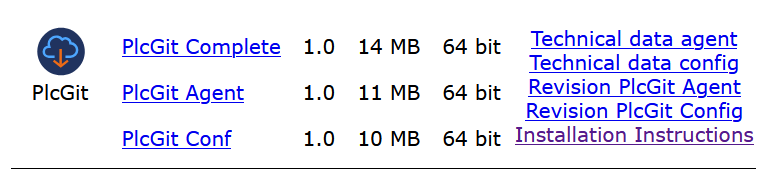
In this example, we downloaded
PLC-Git-Complete, which contains PLC-Git-Agent and PLC-Git-Conf in a
Docker container. Please do this as well.
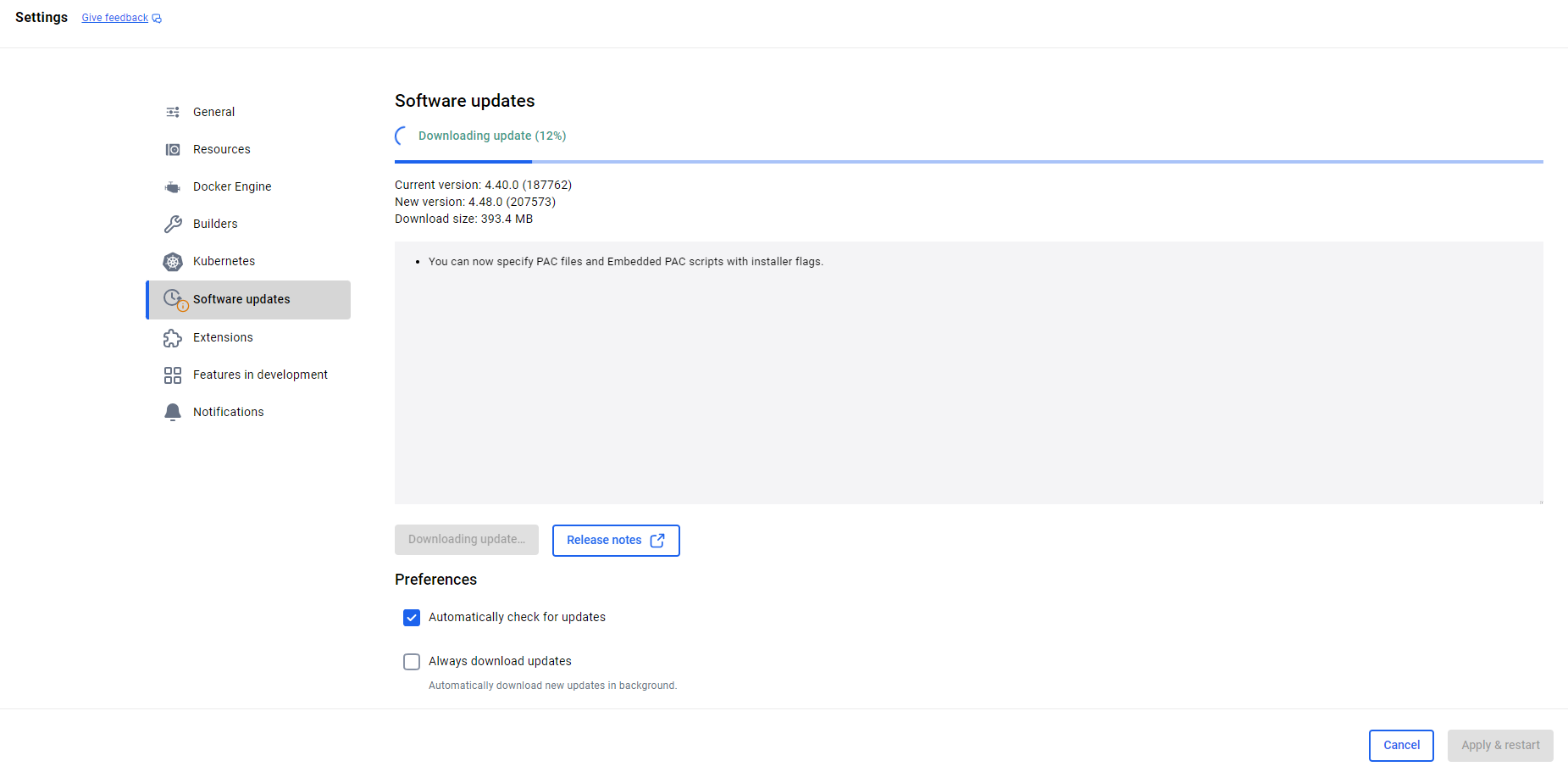
If the Docker been already
installed, be sure it is up to date.
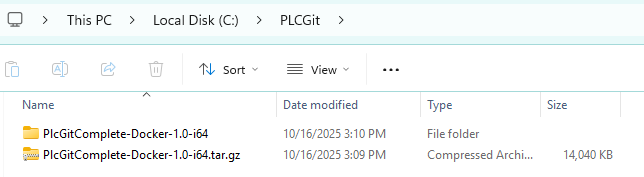
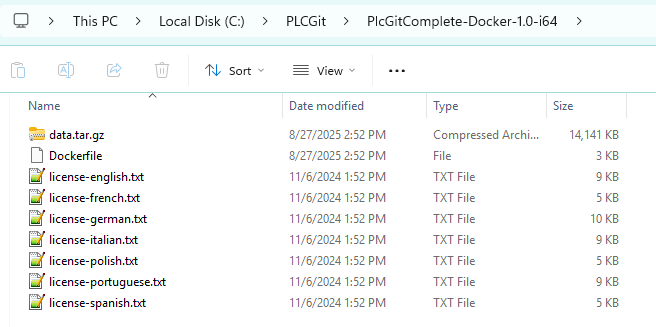
Unzip the the file on your
system.
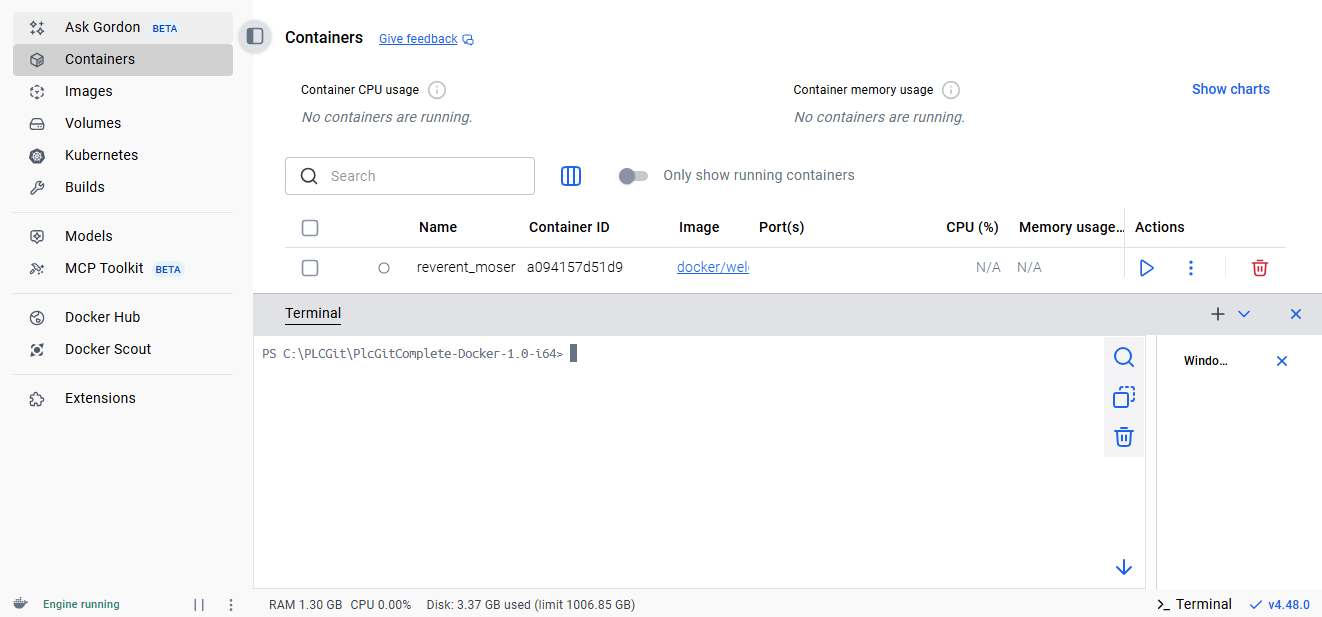
You need Administrations rights to make this Docker running in the
comandline.
If you don't have set the right in Docker you need to use the CMD from
windows and start it as Administrator.
Next commands for the command line
docker build -t plcgitcomplete .
docker run --name plcgitcomplete1 -p 2471:2471/tcp -p 2471:2471/udp -p 8080:80/tcp -v plcgitcomplete-data:/etc/Tani -d --rm plcgitcomplete
Example:
Terminal output:
PS C:\PLCGit\PlcGitComplete-Docker-1.0-i64> docker run --name plcgitcomplete1 -p 2471:2471/tcp -p 2471:2471/udp -p 8080:80/tcp -v plcgitcomplete-data:/etc/Tani -d --rm plcgitcomplete
6a6d00ae3686935590cf42ecefcdec1043cd44951aa32eb487e2f580e68d2bba
PS C:\PLCGit\PlcGitComplete-Docker-1.0-i64>
The PLCGIT is now running in the Docker.
Open a browser now.
Type: localhost:8080